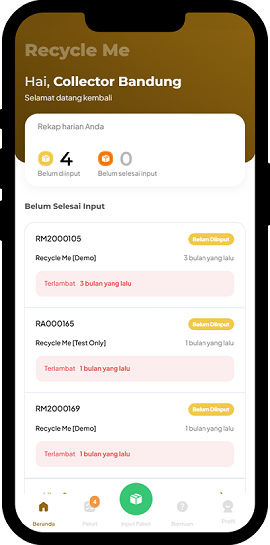
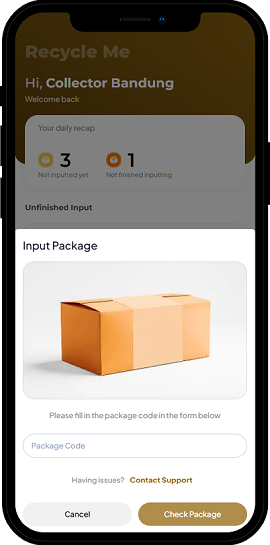
When the pop-up shows up, the user should input the package code sent by the customer and click 'Check Package'
2
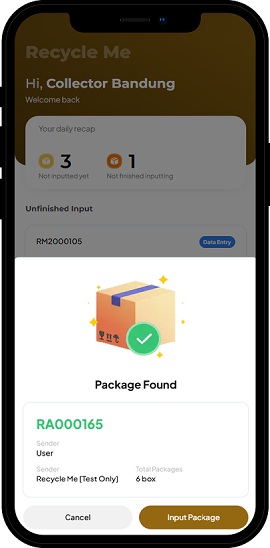
When the 'package found' result is displayed, you can click 'Input Package'
3
When the 'package found' result is displayed, you can click 'Input Package'
4
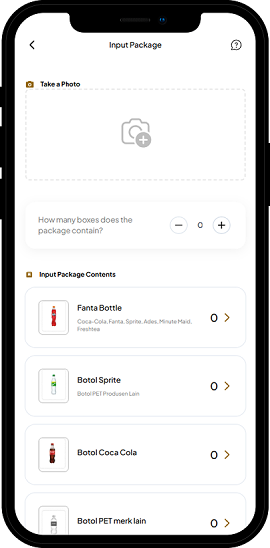
To upload a photo, click the camera icon ('Take Photo') and then choose the picture you wish to upload
5
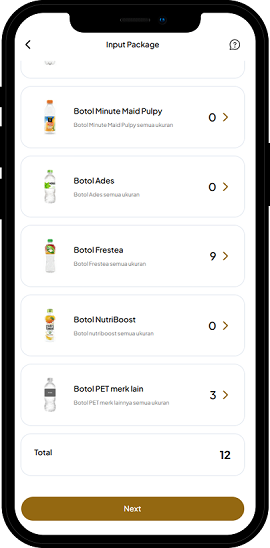
Confirm the quantity of boxes, input the count of material types accepted, and then click 'Continue'
6
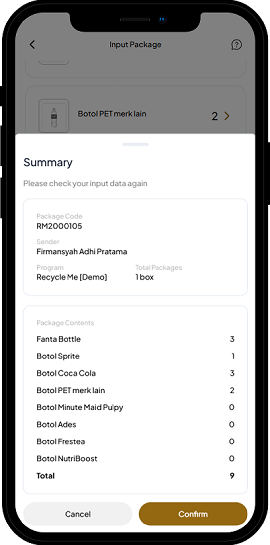
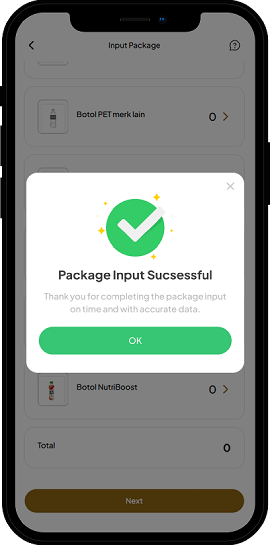
Next, the package details you just input will appear. Please check that they match the received package. Once you confirm the image and quantity are correct, you can click 'Confirm